Session notes, finalizing and addenda
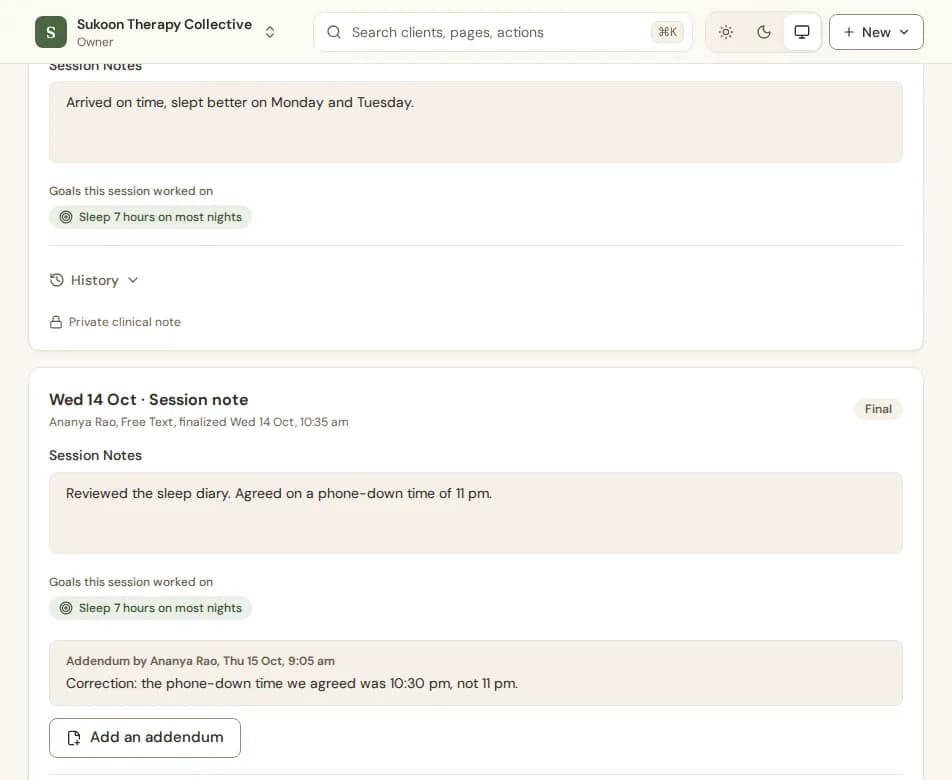
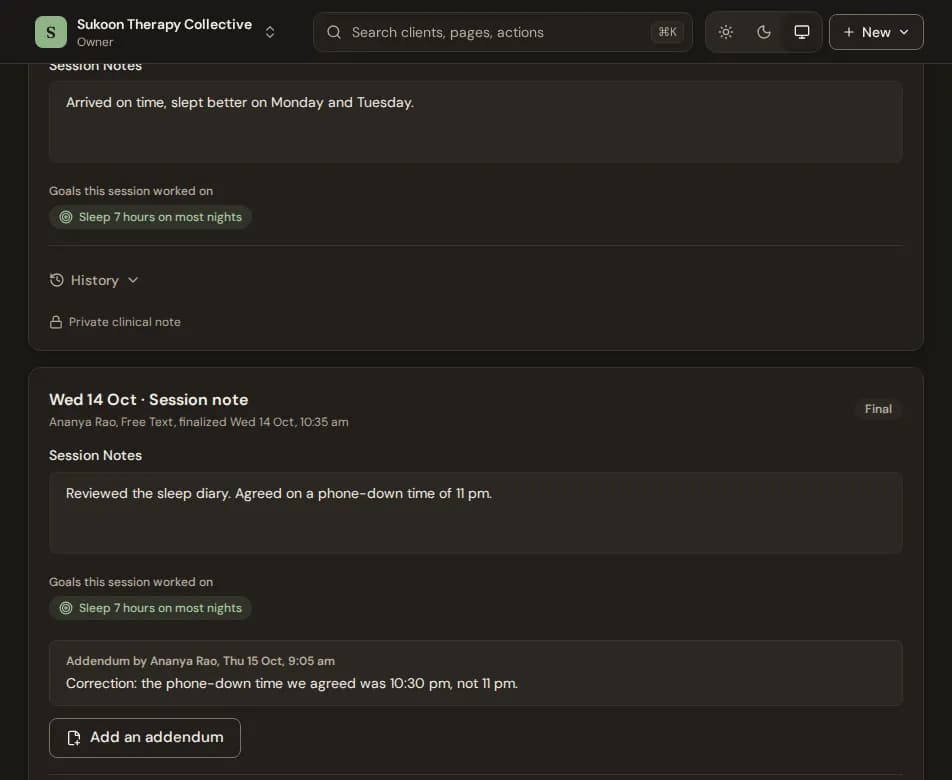
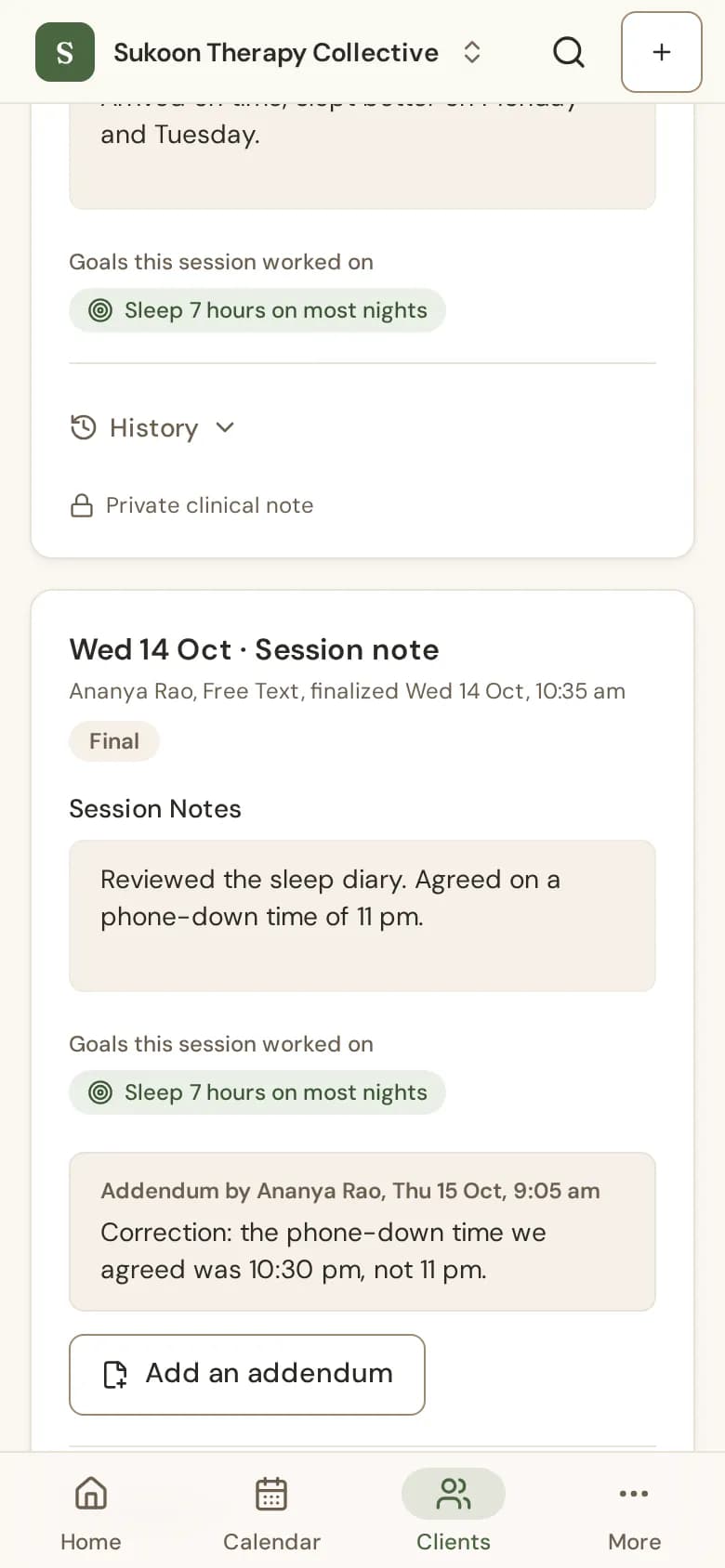
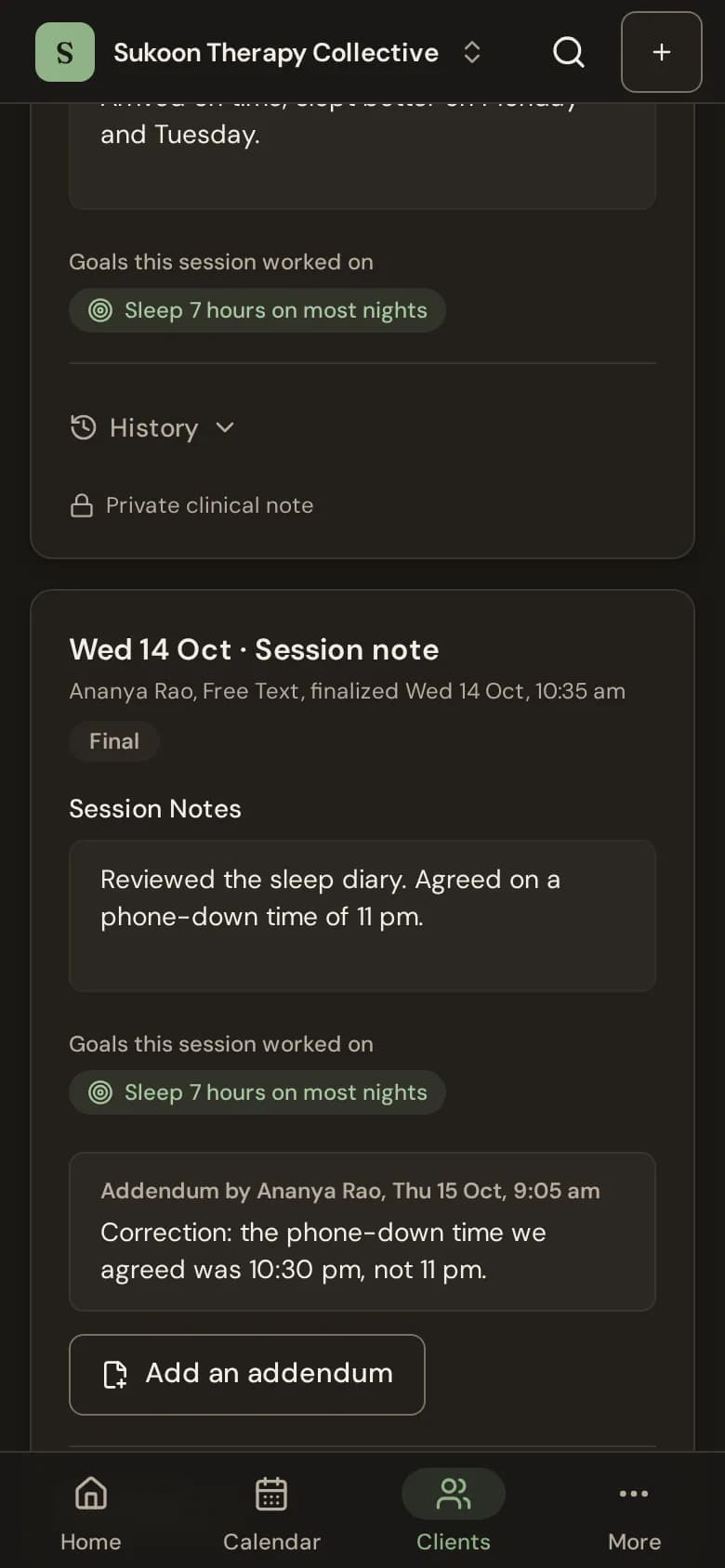
Write a note on the session, link it to the client's goals and finalize it. After that it never changes; add an addendum instead.
Write a note
- Open the session from the calendar. The Session Note is below the session details.
- Pick the Note Format: SOAP, DAP or Free Text. Your clinic sets the default under Clinical records in settings.
- Write the note. It saves as you type: watch for Saved. If it says Not saved, choose Retry.
- Under Goals this session worked on, tick the goals from the client's treatment plan.
Finalize it
Choose Finalize Note, then Finalize Note again to confirm. A finalized note cannot be edited by anyone. Your home page reminds you about notes still in draft.
Add an addendum
To add to a finalized note, choose Add an addendum, write it and choose Add addendum. It is added below the note with your name and the time, and cannot be changed later. Only the note's author can add one.
Discard a draft
Choose Discard draft. The text is deleted; the note's history keeps that you discarded it and when.
Who can read notes
- The note's author, the client's therapist, a supervisor of the author, and anyone your clinic lets read all clinical notes.
- Receptionists do not see notes.
- Each note has a History: who opened or changed it, and when. It never holds the note's text.
- All of a client's notes are on their Notes tab.
Still stuck? Contact us and tell us what you were trying to do.