Find your way around a client page
Everything about one client in one place: sessions, notes, plan, questionnaires, documents, forms and billing.
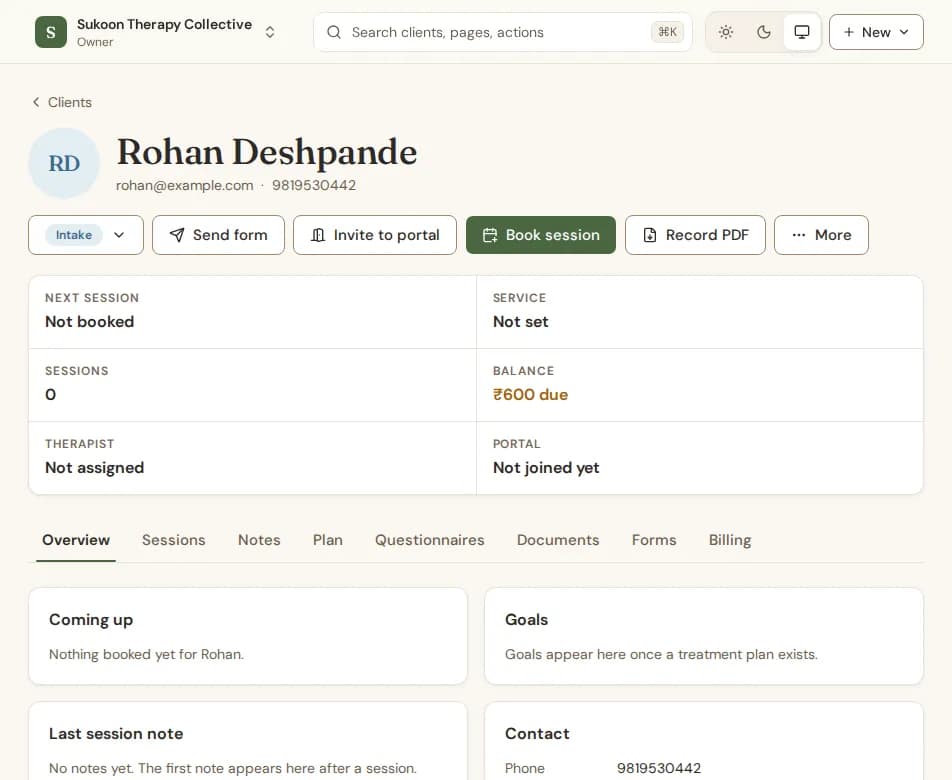
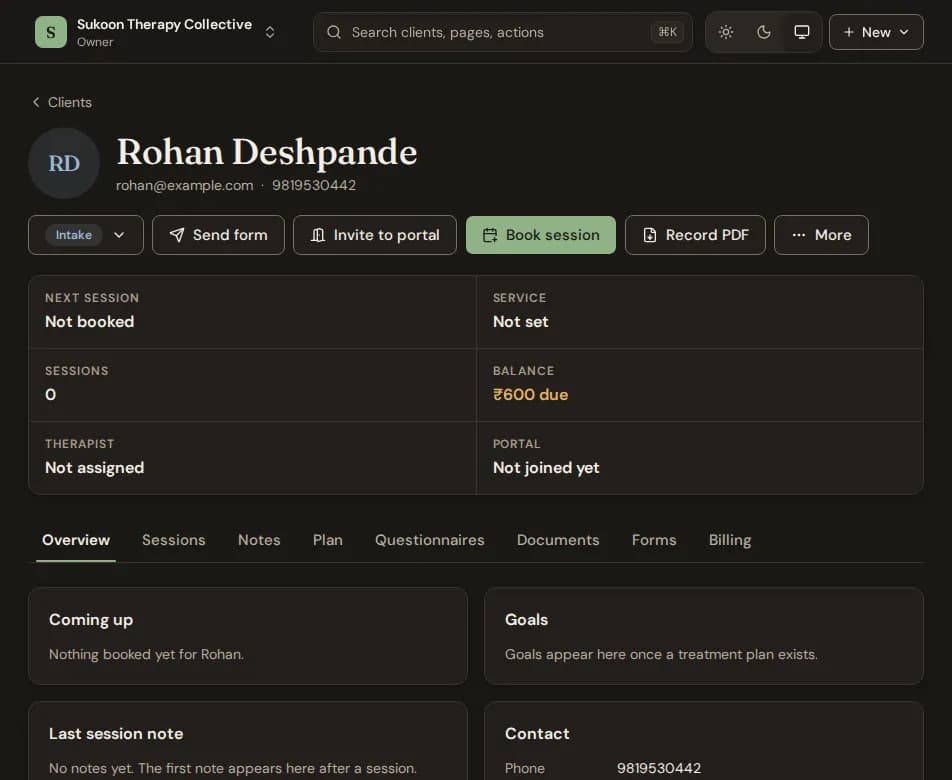
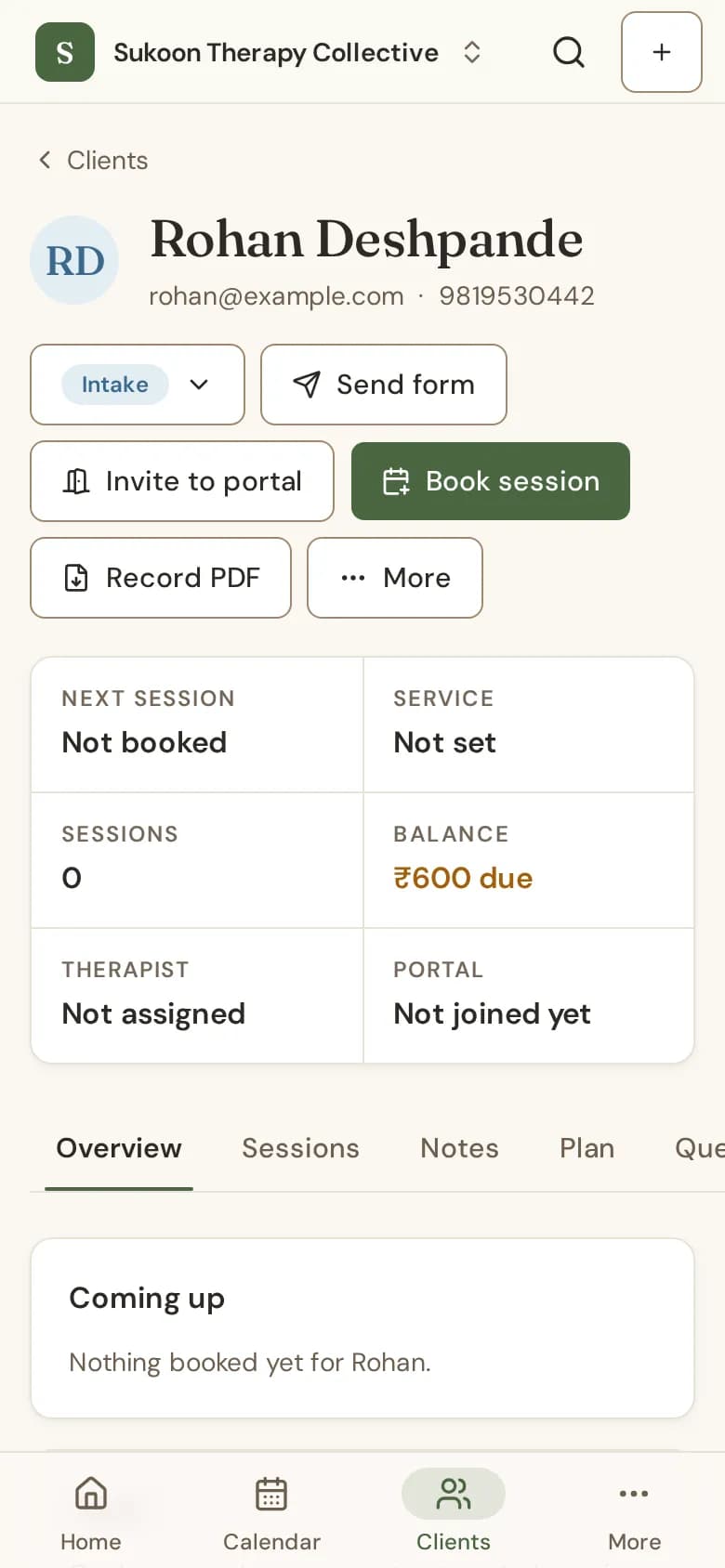
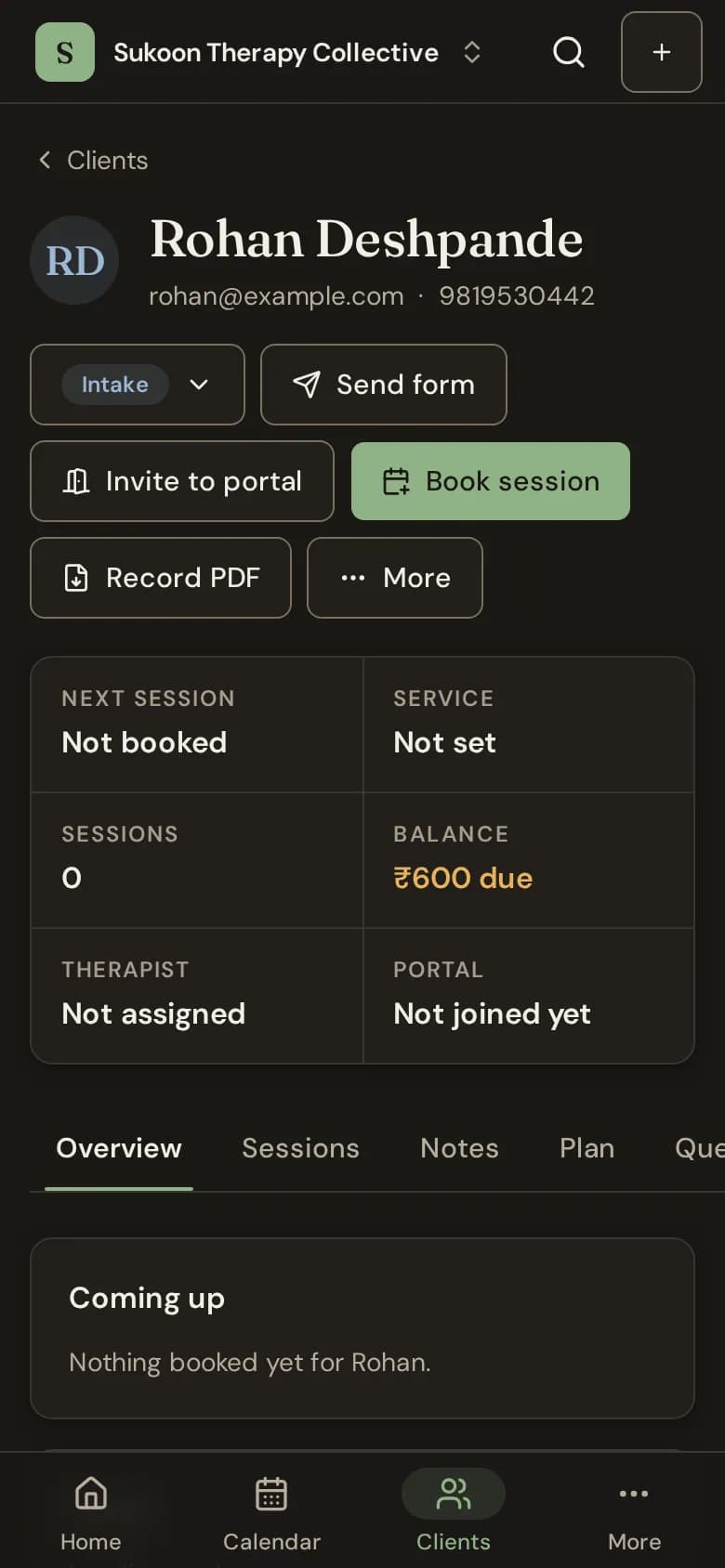
Open Clients and choose a name. The page has a header, a row of facts and tabs.
The header
- Send form: send the client one of your forms.
- Invite to portal: email the client a link to their own page. See Invite a client to the portal.
- Book session: open the booking form with this client filled in.
- Record PDF: download the client's clinical record as a PDF, if you are allowed to.
- More: the rare actions, Unlink portal account and Archive client.
You see only the buttons your role allows.
The facts row
Next session, service, number of sessions, balance, therapist, and whether the client has joined the portal.
The tabs
- Overview: the next session, goals, the last session note and contact details.
- Sessions: every session, past and to come.
- Notes: session notes, for the people allowed to read them.
- Plan: the treatment plan and its goals.
- Questionnaires: PHQ-9 and GAD-7, given in session or sent to the portal.
- Documents: files kept on the client's record.
- Forms: forms sent and their answers.
- Billing: the client's wallet, fees, packages and invoices.
Client status
Next to the name is the client's status: Intake, Active, Paused or Discontinued. Bliss works it out from the client's sessions. To set it yourself, open the status and choose Mark as active (or another status). Choose Use the automatic status to go back.
Still stuck? Contact us and tell us what you were trying to do.