Book a session
Pick the client, the service, the therapist, a time and a place. Bliss emails the client a confirmation and the reminders your policy sets.
- Choose New, then Appointment. You can also choose Book session on a client's page.
- Under Client, type a name, phone or email and pick the client. Not added yet? Choose + Add a new client.
- Under Service, choose the kind of session. Its length and price come with it.
- Check the Therapist. Choose Change to pick someone else.
- Under When, pick the Date and Start time. Times are in your practice's time zone.
- Under Where, choose Online or In person. For in person, pick the Location and, if you like, a Room.
- Check the Summary, then choose Book session.
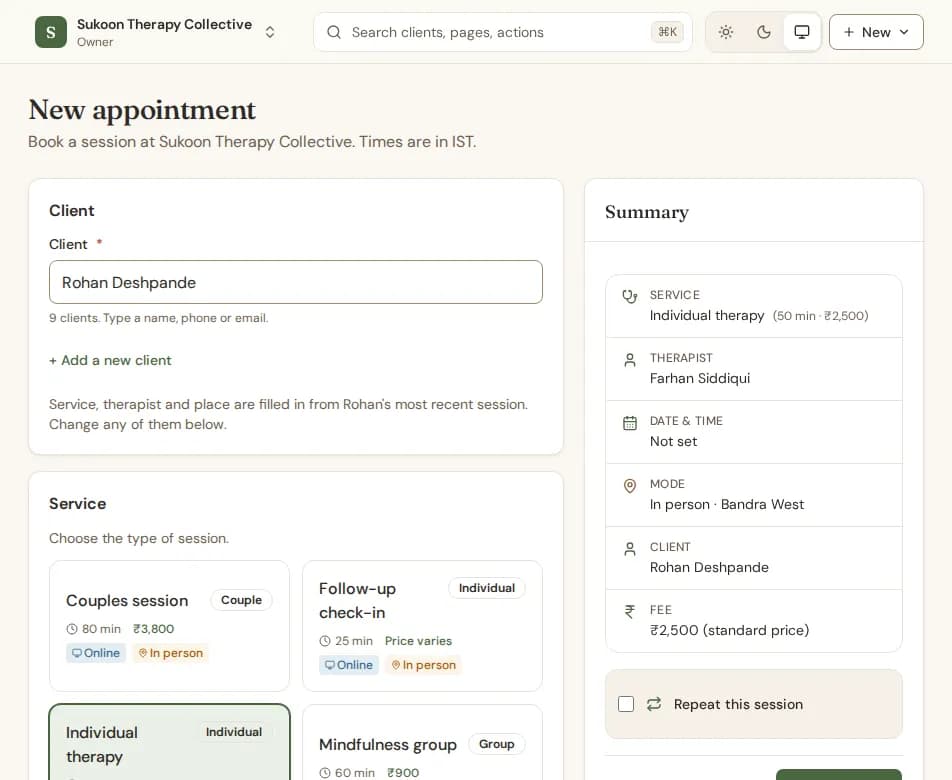
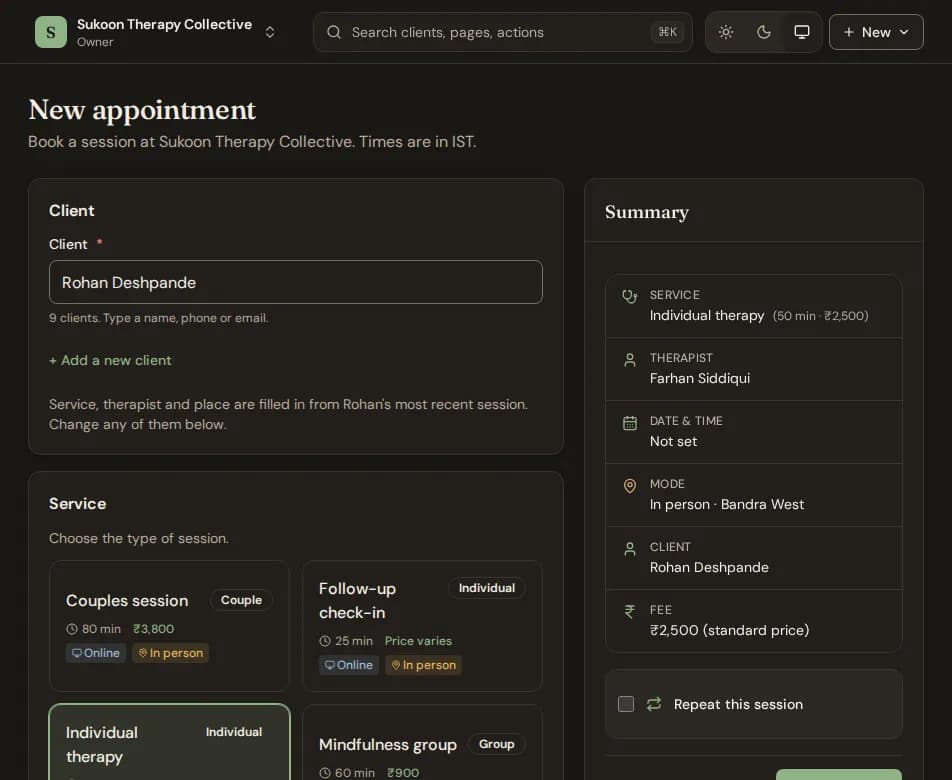
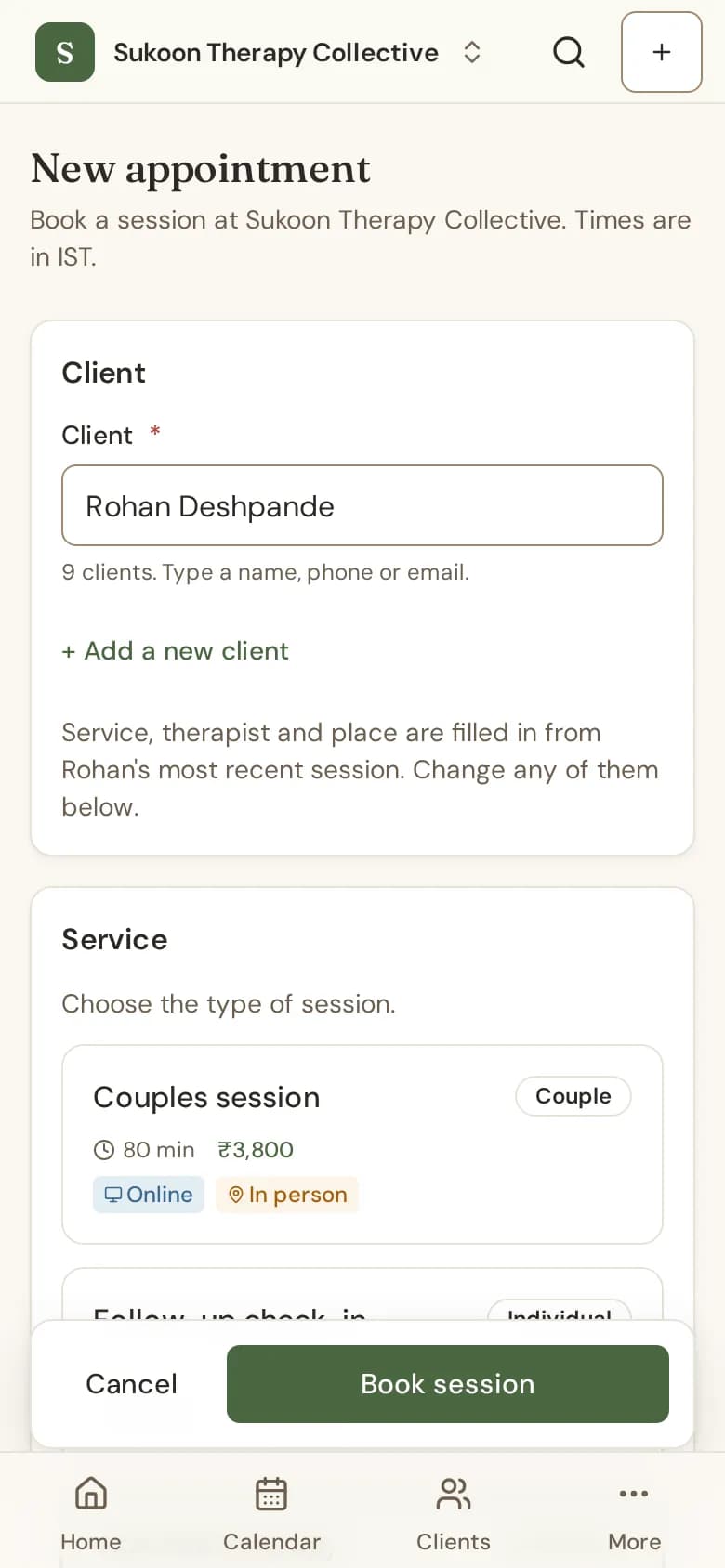
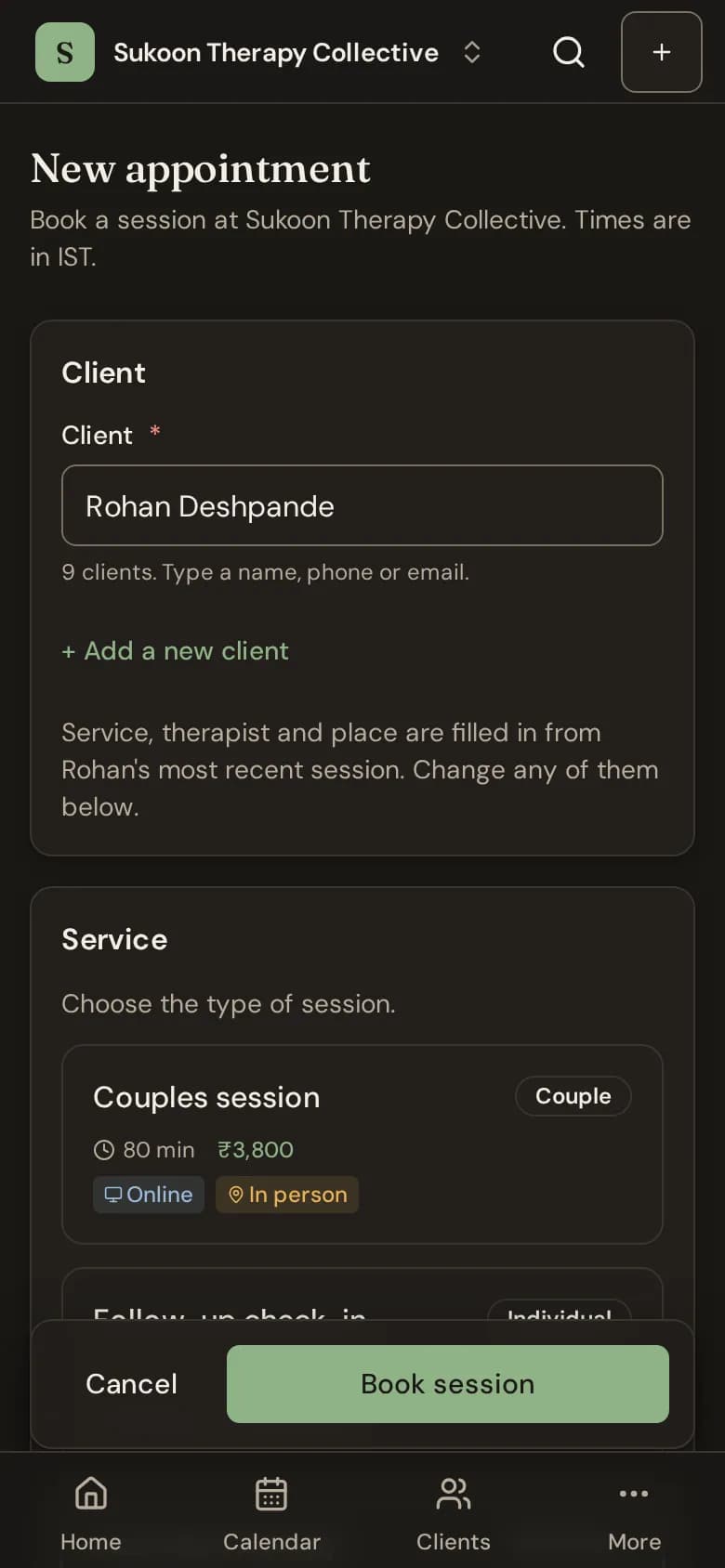
For a client you have seen before, Bliss fills in the service, therapist and place from their last session. Change any of them.
Online sessions and video links
- Paste the link you use in Video link, and Bliss sends it to the client.
- Or keep one room link for every session: go to Clinic settings (in your own practice, Practice settings), then Integrations, and save Your video room link under Your video calls.
- With no link at all, the client is told you will share it before the session.
Google Calendar sync is not switched on yet. Automatic Google Meet and Zoom links are not switched on yet either. Paste your own link or use a room link.
If Bliss warns you
- Scheduling conflict detected: the therapist, room or equipment is already taken at that time. Pick another time.
- Outside your booking rules (too soon, too far ahead or outside hours): Bliss says clients could not book this time in the portal. Choose Book anyway if you mean it.
After booking
The client gets a confirmation email and the reminders your policy sets (an email a day before and an hour before, unless you changed them in Policies). To charge a different fee for this session, see A different fee for one session.
Still stuck? Contact us and tell us what you were trying to do.