Invoices: automatic, manual and drafts
Bliss makes an invoice when you complete a session. You can also make one yourself, keep it as a draft, issue it or void it.
Automatic invoices
When a session is marked Complete, Bliss makes its invoice at the client's fee and emails it to the client, if they have an email address and have not turned emails off, unless No invoice emails is on for them (see Stop invoice emails for one client). Turn this off with Make an invoice when a session is completed, under Billing and GST in your settings.
- A session paid from a package gets no invoice.
- A session whose service says Price varies, for a client with no fee, gets a draft for you to fill in. See What happens to invoices.
- In a group session, the automatic invoice goes to the first client who attended, or to every client who attended if you choose Bill every participant who attended under Group sessions. See Group sessions.
Make an invoice yourself
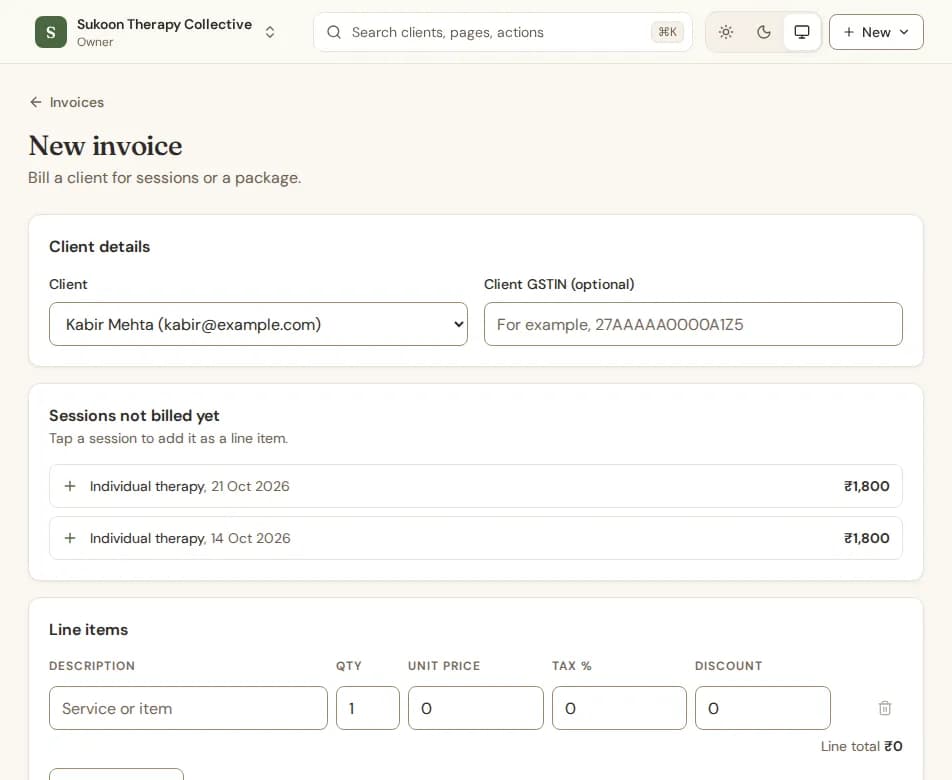
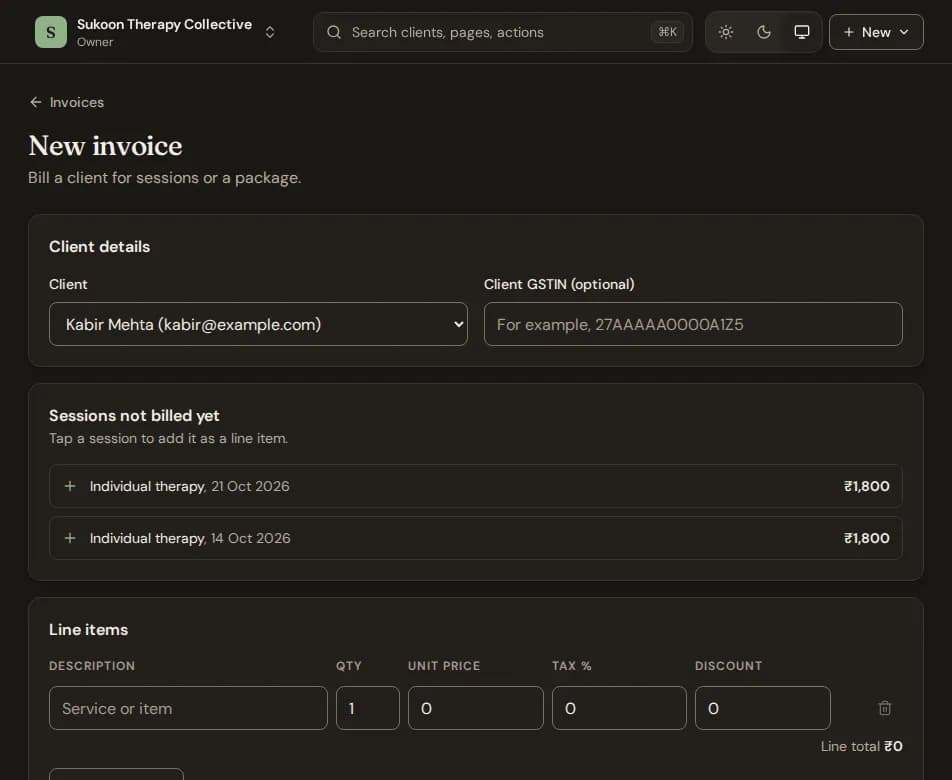
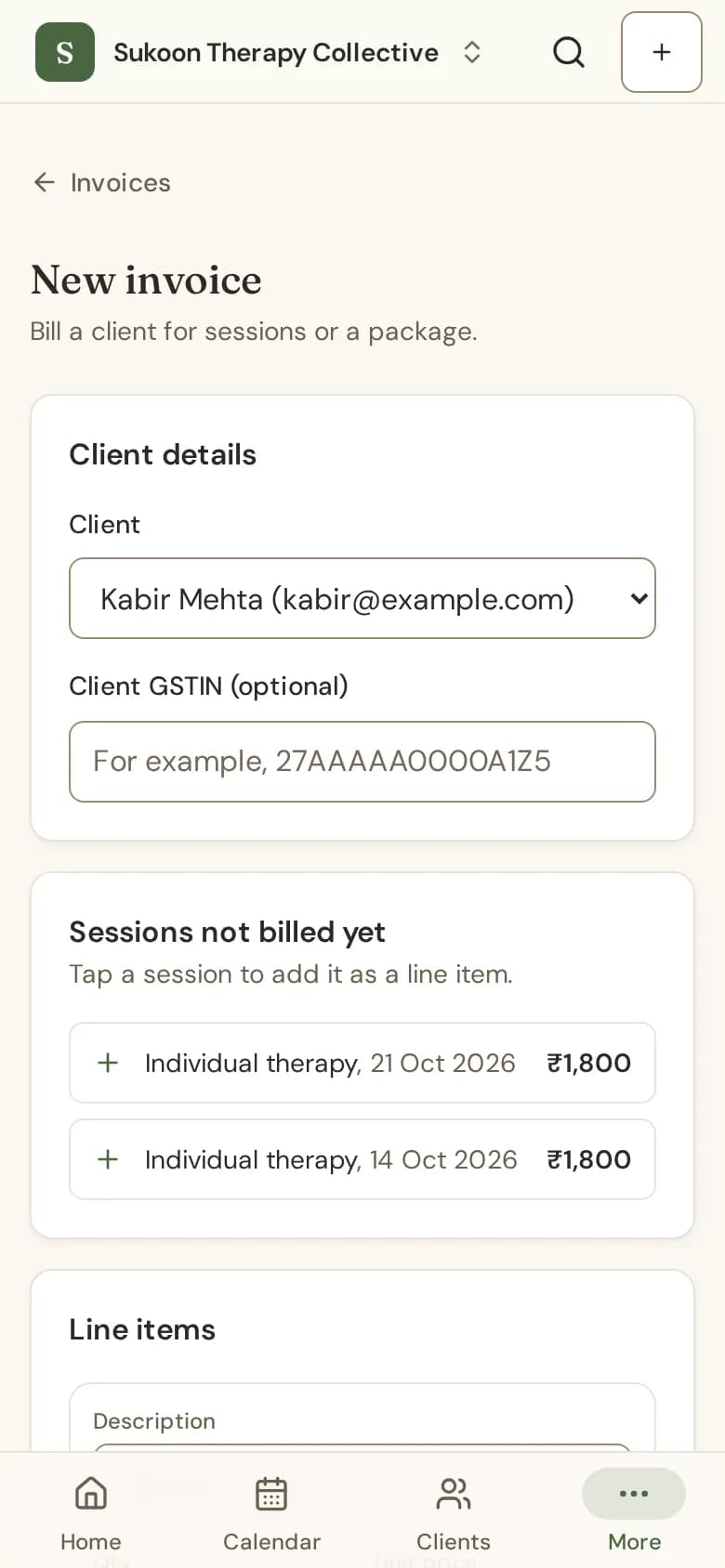
- Choose New, then Invoice. Or go to Invoices and choose New invoice.
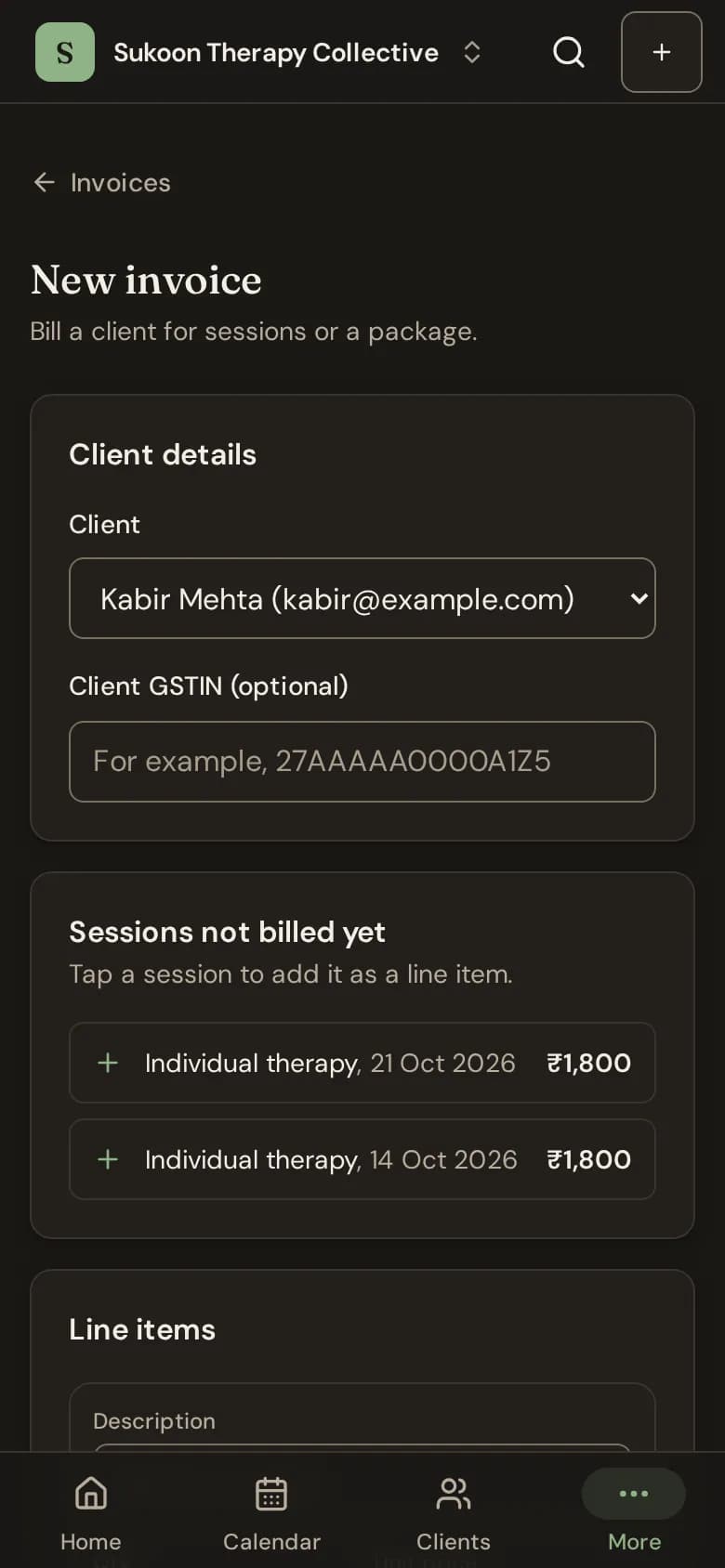
- Pick the Client. Their Sessions not billed yet appear: tap one to add it as a line.
- Add other lines with Add line item: a description, quantity, unit price, tax and discount.
- Choose Create and issue to send it now, or Save as draft to finish later.
Drafts
A draft is not sent and takes no payment. Open it, change any amount under Change an amount before issuing, then choose Issue invoice.
What the statuses mean
- Draft: not issued yet.
- Unpaid, Part paid, Overdue (past its due date) and Paid.
- Credited: a credit note took off everything that was owed.
- Void: cancelled, with the reason you gave.
Void an invoice
Open it, choose Void invoice, give a Reason for voiding and choose Confirm void. An invoice with a recorded payment or a credit note cannot be voided; issue a credit note instead. A GST invoice cannot be voided once its month has ended.
Remind a client
On an overdue invoice, choose Send a gentle reminder to email the client.
Stop invoice emails for one client
Open the client, go to Billing and turn on No invoice emails. You need permission to manage billing. Bliss then does not email that client when an invoice is issued (automatic, manual or recurring) or overdue, and Send a gentle reminder is refused. Payment receipts are still emailed. Only emails stop. Their invoices are still made and listed as usual. Turn it off to start emailing again; invoices issued while it was on are not sent afterwards.